
Introduction
QR codes have made digital payments quick and convenient, but scanning a QR code is only one step in the payment process. For Winbuzz users, understanding the difference between scanning, authorising, and confirming a transaction can help prevent confusion when using UPI or other QR-based payment methods.
A QR code generally contains payment information that a supported application can read. After scanning, users still need to review the payment details and complete the required authorization before a transaction can be considered successful. NPCI’s UPI guidance specifically shows separate scan, confirmation, and transaction-success stages.
What Happens When You Scan a QR Code?
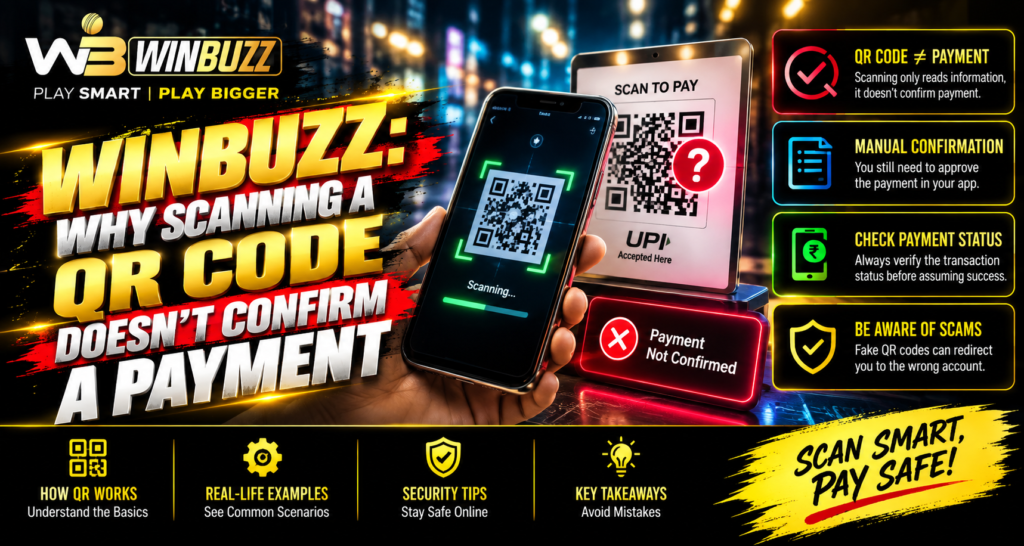
Scanning a QR code does not automatically mean that money has been transferred.
The scan can simply:
- Identify the payment recipient
- Open the relevant payment screen
- Display payment information
- Pre-fill transaction details
- Prepare the payment for authorization
The actual transaction takes place only after the required payment steps are completed.
Why Scanning Is Not the Same as Paying
A QR code works as a way of communicating payment information to the UPI application. It does not itself prove that the transaction has been processed.
After scanning, users should check:
- Recipient name
- UPI ID
- Payment amount
- Bank account
- Any displayed payment details
NPCI’s payment guidance instructs users to review payment details and authorize the transaction before completion.
The Role of UPI Authorization
For standard UPI payments, authorization is an important part of completing the transaction. In many cases, this involves entering the UPI PIN after reviewing the payment details.
A typical sequence is:
- Open the supported UPI application.
- Scan the payment QR code.
- Review the displayed details.
- Enter or confirm the amount when required.
- Authorize the transaction.
- Check the final transaction status.
The BHIM UPI process also separates scanning a QR code from entering the UPI PIN and checking the transaction status.
How to Know Whether a Payment Is Successful
Users should never assume a payment succeeded simply because the QR scanner opened a payment screen.
Look for a clear transaction result such as:
- Success or completed status
- Transaction reference number
- Payment date and time
- Confirmed amount
- Recipient information
NPCI’s UPI documentation identifies transaction status and reference information as important details for confirming and reconciling merchant payments.
What If Money Is Debited but Confirmation Is Missing?
Sometimes a user’s bank account may show a debit while the recipient or merchant has not yet received confirmation.
Possible reasons include:
- Temporary network problems
- Bank-side processing delays
- Application connectivity issues
- Merchant confirmation delays
- Technical reconciliation problems
NPCI’s UPI Help framework includes a specific issue category for situations where an account is debited but transaction confirmation is not received at the merchant location.
In such cases, users should check their transaction history rather than immediately making another payment.
Secure Account Access Before Payment
Payment safety also depends on secure account access. When completing Winbuzz Login, users should make sure they are using the correct website or application and should avoid entering credentials through suspicious links.
Good practices include:
- Keep passwords private.
- Never disclose OTPs or UPI PINs.
- Use updated devices and applications.
- Avoid unknown payment links.
- Review payment details before authorization.
QR Code Safety Tips
QR codes should be treated like any other payment instruction. Users should not scan unfamiliar codes without understanding where they lead.
NPCI warns users about fraudulent QR-code schemes and specifically notes that scanning a QR code and entering a UPI PIN is for making a payment, not receiving one.
Before approving a payment:
- Verify the recipient.
- Confirm the amount.
- Check the payment application.
- Stop if the request looks unusual.
Keep Payment Records
After completing a transaction, save important information for future reference.
Useful records include:
- Transaction ID
- Reference number
- Amount
- Date and time
- Payment status
- Bank notification
These details can help when investigating a delayed, failed, or disputed transaction.
Avoid Making Duplicate Payments
If a payment appears delayed, users may be tempted to scan the QR code again and repeat the transaction. This can potentially create duplicate payments.
Instead:
- Check the transaction history.
- Confirm whether the amount was debited.
- Check the payment status.
- Contact the bank or authorised support channel if necessary.
Conclusion
Scanning a QR code is only the beginning of a digital payment. The QR code identifies or provides payment information, while authorization and transaction confirmation determine whether the payment has actually been completed.
Understanding the difference between scanning and successful payment can help users avoid duplicate transactions, incorrect payments, and unnecessary confusion. Users should always verify payment details, protect authentication credentials, and check the final transaction status before considering a payment complete.
FAQs
Does scanning a QR code automatically make a payment?
No. Scanning generally opens or prepares the payment details. Additional authorization is normally required for a standard UPI payment.
How can I confirm that a QR payment succeeded?
Check the payment application’s transaction history for a successful or completed status and retain the transaction reference number.
What if money is debited but the recipient has not received it?
Check the transaction status first. If confirmation remains unavailable, contact the bank or authorised payment support channel.
Should I enter my UPI PIN after scanning a QR code?
Only after verifying the recipient and payment amount. NPCI advises that users should not enter their UPI PIN simply to receive money.
Can scanning an unknown QR code be risky?
Yes. Users should avoid unfamiliar QR codes and verify the destination and payment details before authorizing any transaction.