
Introduction
A mobile website may sometimes appear broken, load slowly, display missing buttons, or show an incomplete page. For users accessing Winbuzz on a smartphone, these issues can result from the internet connection, browser settings, outdated cached files, or temporary website problems. Instead of repeatedly refreshing the page, checking a few common causes can help identify and resolve the issue quickly.
Why Does a Mobile Website Load Incorrectly?
Mobile websites depend on several elements working together, including your browser, internet connection, cookies, scripts, and device software.
Common symptoms include:
- Blank or partially loaded pages
- Images not appearing
- Buttons not responding
- Text overlapping
- Login forms not opening
- Pages constantly refreshing
- Live sections failing to update
The cause may be temporary and does not always indicate an account problem.
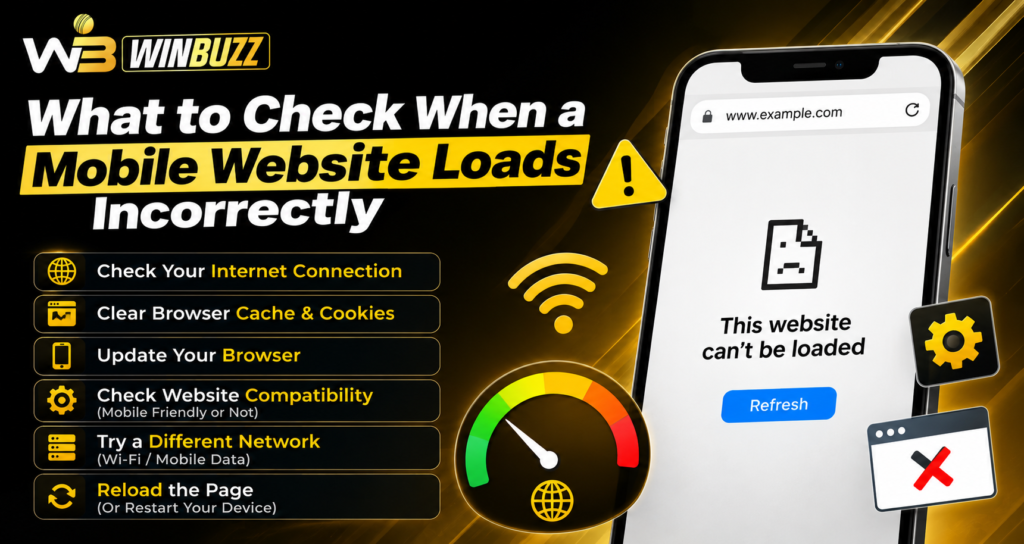
1. Check Your Internet Connection
Start by confirming that your mobile data or Wi-Fi connection is stable.
Try opening another trusted website. If several websites are loading slowly, the problem is likely related to your connection rather than one specific platform.
You can also switch between Wi-Fi and mobile data to test whether performance improves.
2. Refresh the Page Once
A temporary loading interruption can prevent certain elements from appearing.
Refresh the webpage once and allow it enough time to load completely. Avoid repeatedly tapping refresh, as this can create additional requests and sometimes make the experience slower.
3. Clear Browser Cache
Browsers save files to make websites load faster. However, old cached files may conflict with a newer version of a website.
Clearing the browser cache can help when:
- The page design looks outdated
- Buttons no longer work
- Images are missing
- Old content keeps appearing
After clearing the cache, close and reopen the browser.
4. Check Cookies and Site Data
Cookies help websites maintain sessions and remember certain settings. Damaged or outdated cookies can occasionally cause navigation or account-access issues.
If Winbuzz login pages are not displaying properly, clearing cookies for the affected website may create a fresh browser session.
Remember that clearing cookies can sign you out of websites.
5. Update Your Mobile Browser
An outdated browser may not fully support newer website technologies.
Check whether an update is available for Chrome, Safari, Firefox, Edge, or whichever browser you use.
Browser updates can improve:
- Compatibility
- Security
- Loading speed
- JavaScript support
- Page rendering
6. Make Sure JavaScript Is Enabled
Many modern websites use JavaScript for menus, buttons, login forms, live data, and interactive features.
If JavaScript is disabled, parts of a website may appear blank or fail to respond.
Check your browser settings and ensure scripts are allowed for trusted websites.
7. Disable Conflicting Extensions or Blocking Tools
Some mobile browsers support privacy tools, ad blockers, VPNs, or content filters.
These tools can occasionally block important website resources.
Temporarily disable suspicious extensions or filters and reload the page. If the website starts working correctly, one of those tools may have caused the problem.
8. Restart the Browser or Device
Closing and reopening your browser clears temporary processes.
If that does not work, restart your smartphone. A restart can resolve minor memory, network, or background-process problems that interfere with browser performance.
9. Try Another Trusted Browser
If a page still looks incorrect, open it in another browser.
For example, if the site fails in Chrome but works normally in Firefox, the issue may be related to browser settings rather than the website itself.
This is also useful when troubleshooting Winbuzz login access.
10. Check Whether Live Data Is the Only Problem
Sometimes the main website works normally, but Winbuzz live information may not update correctly.
If only live sections are affected:
- Refresh the specific page
- Check your connection
- Close unnecessary browser tabs
- Reopen the sports section
- Wait for updated information to load
Because live information changes continuously, temporary delays may occur without affecting the entire website.
When Should You Contact Support?
If the website continues loading incorrectly across multiple browsers and internet connections, the problem may be server-side.
Before contacting support, note:
- Device model
- Browser name
- Error message
- Page affected
- Approximate time of the problem
Do not share passwords, OTP codes, banking PINs, or other sensitive security information.
Conclusion
An incorrectly loading mobile website is often caused by simple browser or network problems. Checking the connection, clearing cache and cookies, updating the browser, enabling JavaScript, and trying another browser can resolve many common issues.
If Winbuzz live sections or account pages continue to malfunction after basic troubleshooting, users should use official support channels and clearly describe the problem. Keeping the device and browser updated can also reduce similar issues in the future.
FAQs
Why does a website look broken on my phone?
Outdated cache files, browser compatibility problems, disabled scripts, or a weak internet connection can cause pages to display incorrectly.
Can clearing cache fix a mobile website?
Yes. Clearing outdated cached files can help the browser download the latest version of a webpage.
Why are website buttons not working?
JavaScript may be disabled, the page may not have loaded completely, or a browser extension could be blocking required scripts.
Should I try another browser?
Yes. Testing another trusted browser can help determine whether the problem is related to your current browser.
What should I do if only live information is not updating?
Refresh the page, check your internet connection, reopen the live section, and confirm whether other parts of the website are working normally.