Introduction
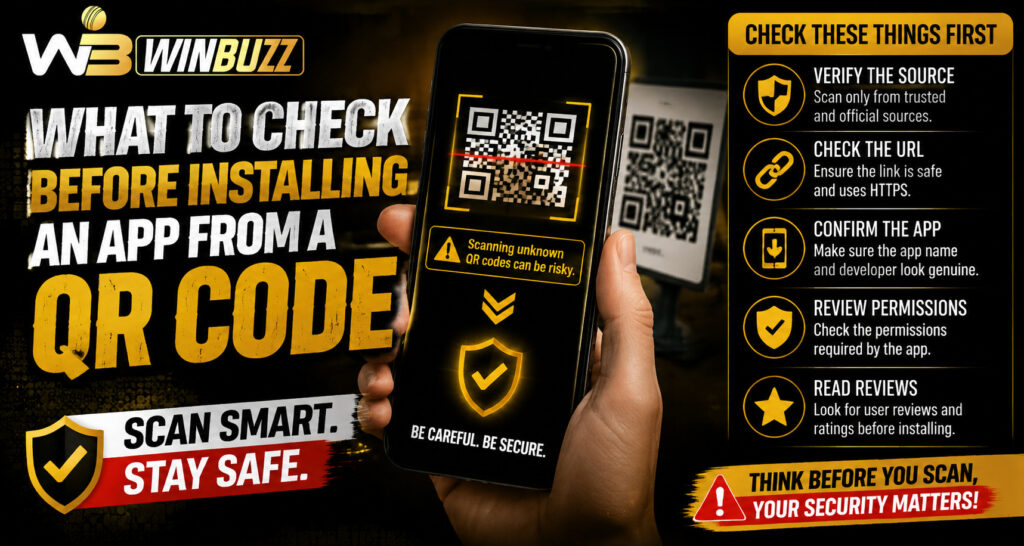
QR codes can make downloading an app quick and convenient, but scanning one should never mean installing a file without checking where it came from. For Winbuzz users or anyone downloading an app through a QR code, a few simple security checks can help reduce the risk of fake applications, phishing pages, malware, and stolen account details. The safest approach is to verify the source before opening or installing anything.
1. Check Where the QR Code Came From
Start by asking where you found the QR code.
A QR code displayed on an official website or verified company page is generally more trustworthy than one received through an unknown message, social media account, or random advertisement.
Be especially careful with QR codes sent through:
- Unsolicited SMS messages
- Unknown WhatsApp accounts
- Social media comments
- Pop-up advertisements
- Unverified emails
- Random printed flyers
Never assume a professional-looking QR code is automatically genuine.
2. Preview the Link Before Opening It
Most modern phones display the destination link before opening a QR code.
Check the URL carefully.
Look for:
- Correct website spelling
- HTTPS connection
- Unexpected extra words
- Strange subdomains
- Misspelled brand names
- Unusual shortened URLs
A fake website may use a domain that looks almost identical to the genuine one.
3. Prefer Official App Stores
Whenever possible, install apps through Google Play or Apple’s App Store.
Official stores provide additional security checks and make it easier to review:
- Developer name
- App permissions
- User reviews
- Update history
- Privacy information
If a QR code immediately downloads an APK or another installation file instead of opening an official store, take extra care.
4. Verify the App Developer
Before installation, confirm that the developer name matches the organisation you expect.
Fake apps sometimes copy:
- Logos
- App names
- Screenshots
- Colour schemes
- Website designs
These visual similarities do not prove that an application is official.
Users completing Winbuzz login should be particularly careful not to enter usernames, passwords, or OTP codes into an app unless they have verified its authenticity.
5. Check the File Type
Android installation files commonly use the .apk extension.
An unexpected file format should be treated cautiously. If scanning a QR code downloads an unfamiliar executable, archive, or other file without explanation, do not open it.
Avoid installing files simply because the webpage tells you to disable security warnings.
6. Review App Permissions
Before granting permissions, consider whether the requested access makes sense.
For example, ask why a sports-related app would need unrestricted access to:
- Contacts
- SMS messages
- Microphone
- Camera
- Call history
- Device administrator settings
Some permissions may be legitimate, but excessive requests should be investigated before approval.
7. Never Ignore Security Warnings
Your phone may display warnings when an app comes from outside an official store.
Do not automatically dismiss these messages.
Security warnings can indicate that:
- The file comes from an unknown source
- The app has not been verified
- Installation requires changing device settings
- The file could potentially be harmful
Understand why the warning appears before proceeding.
8. Keep Your Device Updated
An updated operating system provides newer security protections against malicious applications and websites.
Regularly update:
- Android or iOS
- Web browsers
- Security components
- Installed applications
Older devices may contain vulnerabilities that newer malware can exploit.
9. Do Not Share OTPs or Passwords
A genuine app should not require you to give your password or OTP to another person through chat or phone support.
If anyone asks for:
- OTP codes
- Banking PINs
- Card security codes
- Account passwords
stop immediately.
People using Winbuzz live features should keep their account credentials private regardless of how the app was installed.
10. Check Before Entering Payment Details
Do not add banking or payment information immediately after installing an unfamiliar app.
First confirm:
- The app is authentic
- The account section looks legitimate
- Payment pages use secure connections
- There are no unexpected redirects
If anything looks unusual, close the app and verify the source independently.
Signs a QR Code Download May Be Unsafe
Stop the installation if:
- The URL does not match the expected website.
- The app name or developer looks unfamiliar.
- Your browser shows a security warning.
- The app requests unnecessary permissions.
- You are pressured to install immediately.
- Someone asks you to disable security features.
- You are asked to share an OTP or password.
Conclusion
QR codes are convenient, but they should be treated as links rather than proof that an app is genuine. Always check the destination URL, developer identity, file type, permissions, and security warnings before installing anything.
Using verified download sources, keeping your phone updated, and protecting login credentials can significantly reduce unnecessary security risks. If an app or QR code looks suspicious, avoiding the installation is usually safer than trying to fix an account problem later.
FAQs
Is it safe to install an app from a QR code?
It can be safe if the QR code comes from a verified source and directs you to an authentic app or official app-store listing.
Can a QR code contain malware?
The QR code itself usually acts as a link, but it can direct users to malicious websites or harmful downloads.
Should I install an APK received through a QR code?
Only after verifying the source, developer, website address, and file authenticity. Official app stores are generally preferable when available.
Why does my phone warn about unknown apps?
The warning usually appears because the application is being installed outside the device’s normal app store or verified installation process.
What should I do if a QR code opens a suspicious website?
Close the page, avoid entering personal information, and access the intended service by typing its known official address directly into your browser.